

The Beginner's Guide to AutoCAD Shortcuts That Will Actually Save You Time
Let's be honest — when you first open AutoCAD, the interface looks like it was designed to intimidate you. Menus everywhere. Panels you've never heard of. A command line that stares at you, waiting.
And then someone tells you there are keyboard shortcuts. Hundreds of them.
The good news? You don't need hundreds. You need about twenty — used consistently — and they will genuinely change how fast you work. The designers who move through AutoCAD like it's second nature aren't using special tricks. They're just using the same small set of shortcuts, over and over, until their fingers do it without thinking.
That's exactly what this guide is going to give you.

You don't need to memorise every AutoCAD command. You need to deeply know the ones you use every day — and the rest will come naturally over time.
How AutoCAD Shortcuts Actually Work
Before the tables, a quick explanation — because understanding the system makes it all click faster.
AutoCAD's command line is always listening. Any time you type a command alias and press Enter (or the spacebar, which works the same way), AutoCAD executes it immediately — regardless of what tool is active or what panel you're in.
Most command aliases are just one, two, or three letters. L for Line. C for Circle. CO for Copy. These aren't arbitrary — they're the first letters of the command name, which makes them genuinely easy to learn.
A few extra things worth knowing up front:
Press Escape to cancel any active command and return to a clean state
Press Enter or Spacebar to confirm inputs and repeat the last used command
Press F8 to toggle Ortho Mode on and off (locks movement to horizontal/vertical)
Press F3 to toggle Object Snap on and off
Middle mouse button pans the drawing — click and hold to pan, scroll to zoom
💡 One Habit That Changes Everything
Get into the routine of typing commands instead of clicking toolbar buttons. It feels slower at first. Within two weeks it's faster — and within a month it's automatic. The toolbar is for finding commands you don't know yet. The keyboard is for everything else.
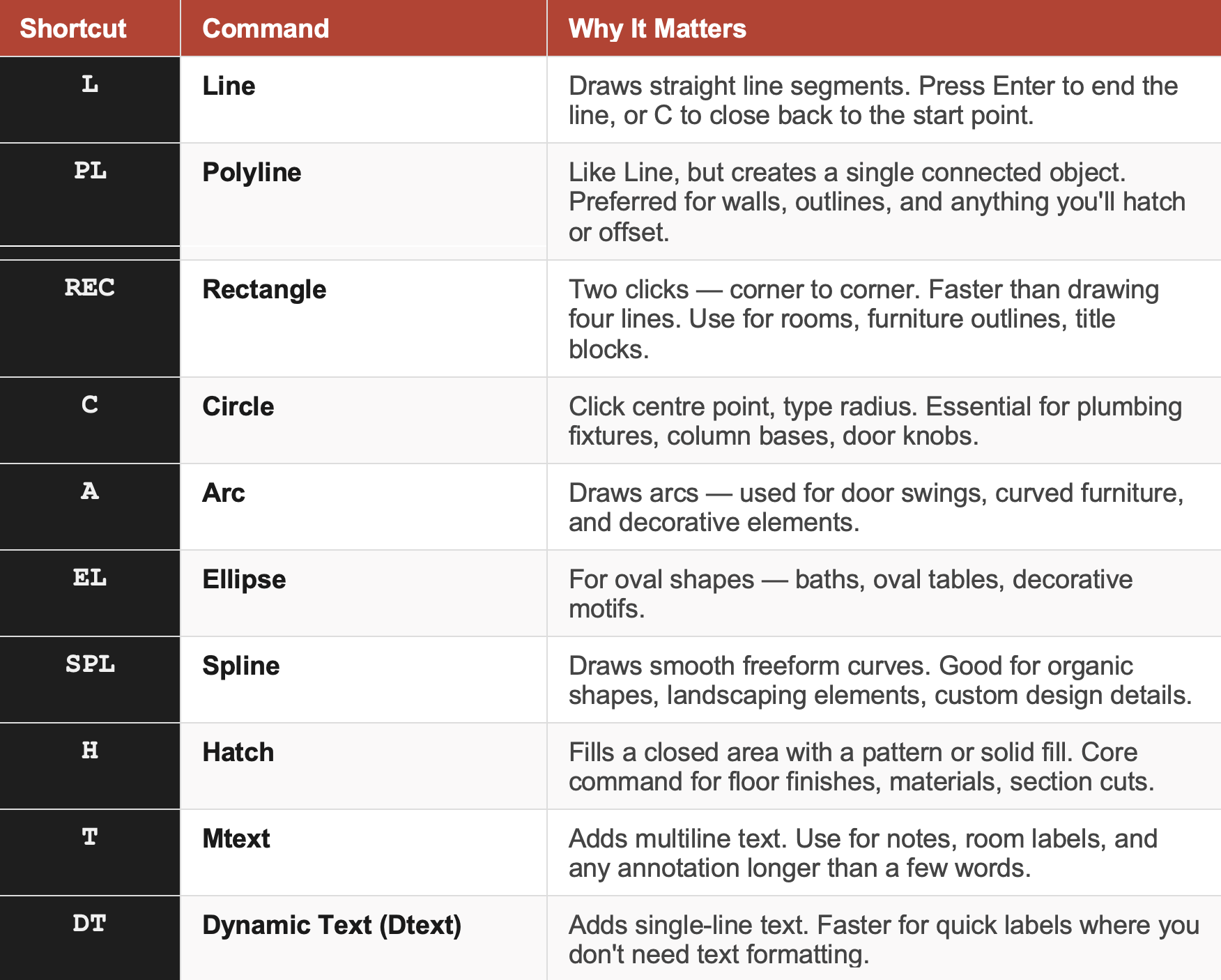
01 · DRAWING COMMANDS
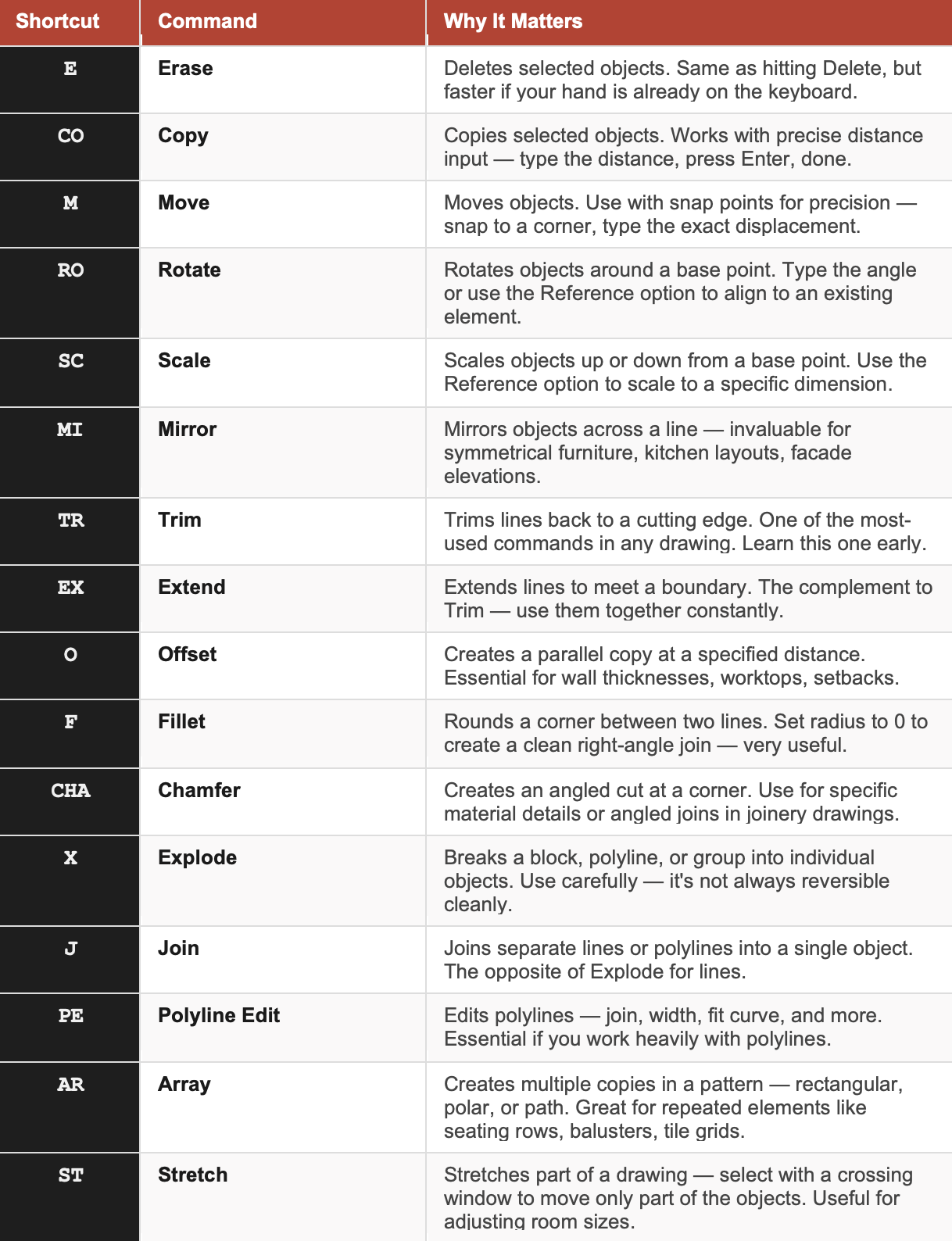
02 · MODIFY COMMANDS
Find the Best AutoCAD Blocks Library for your projects
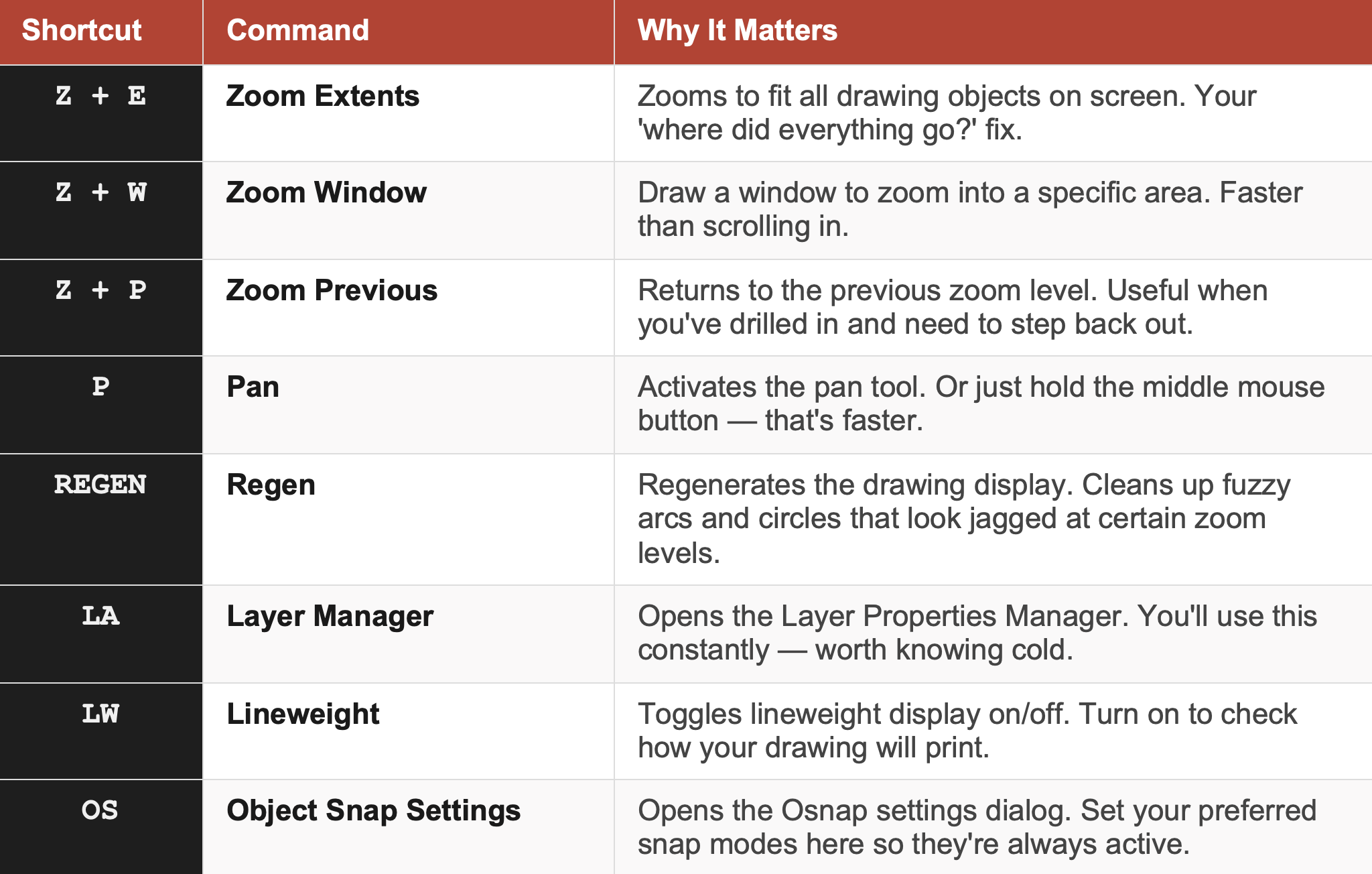
03 · NAVIGATION & VIEW
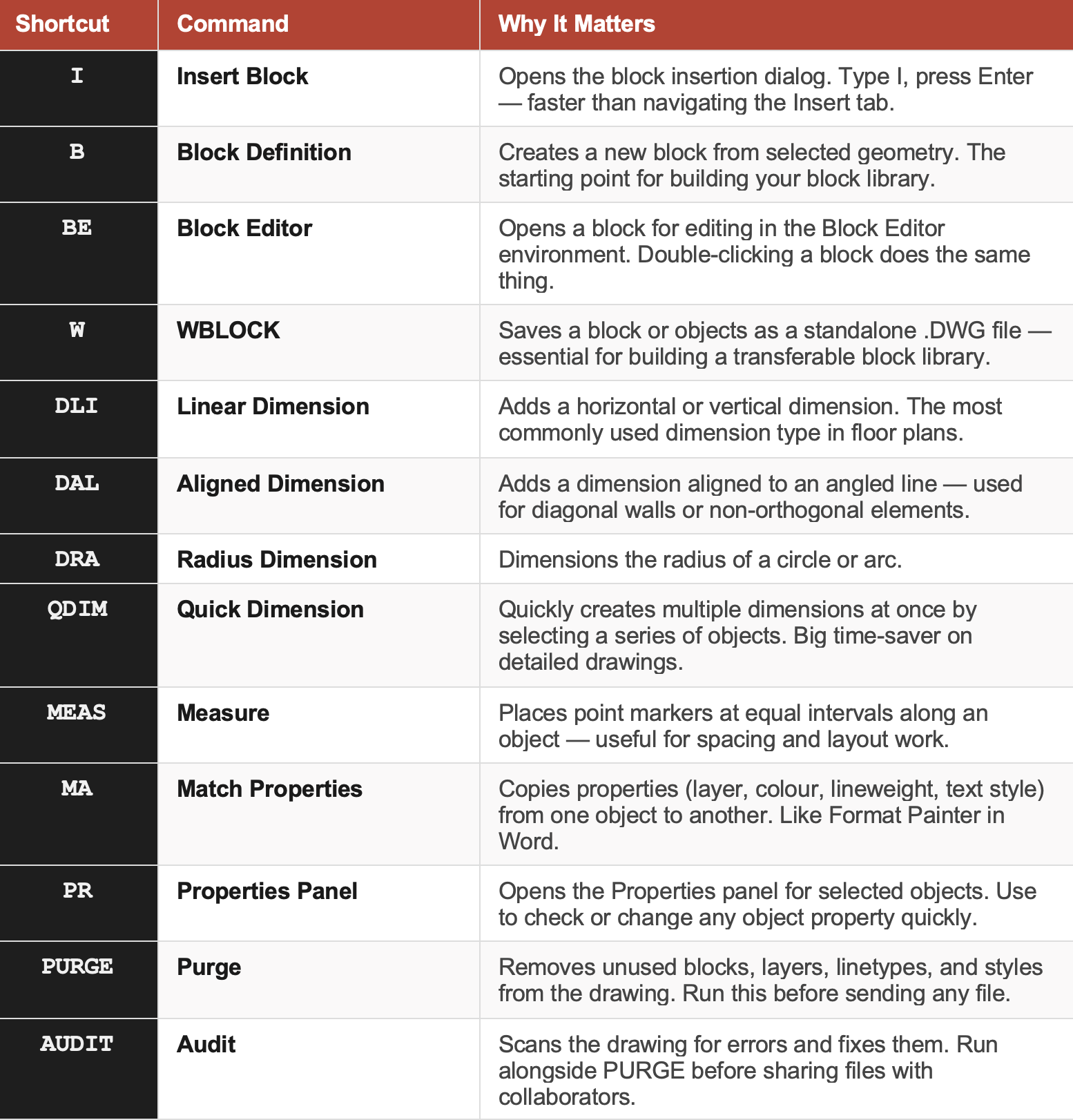
04 · BLOCKS, DIMENSIONS & POWER TOOLS
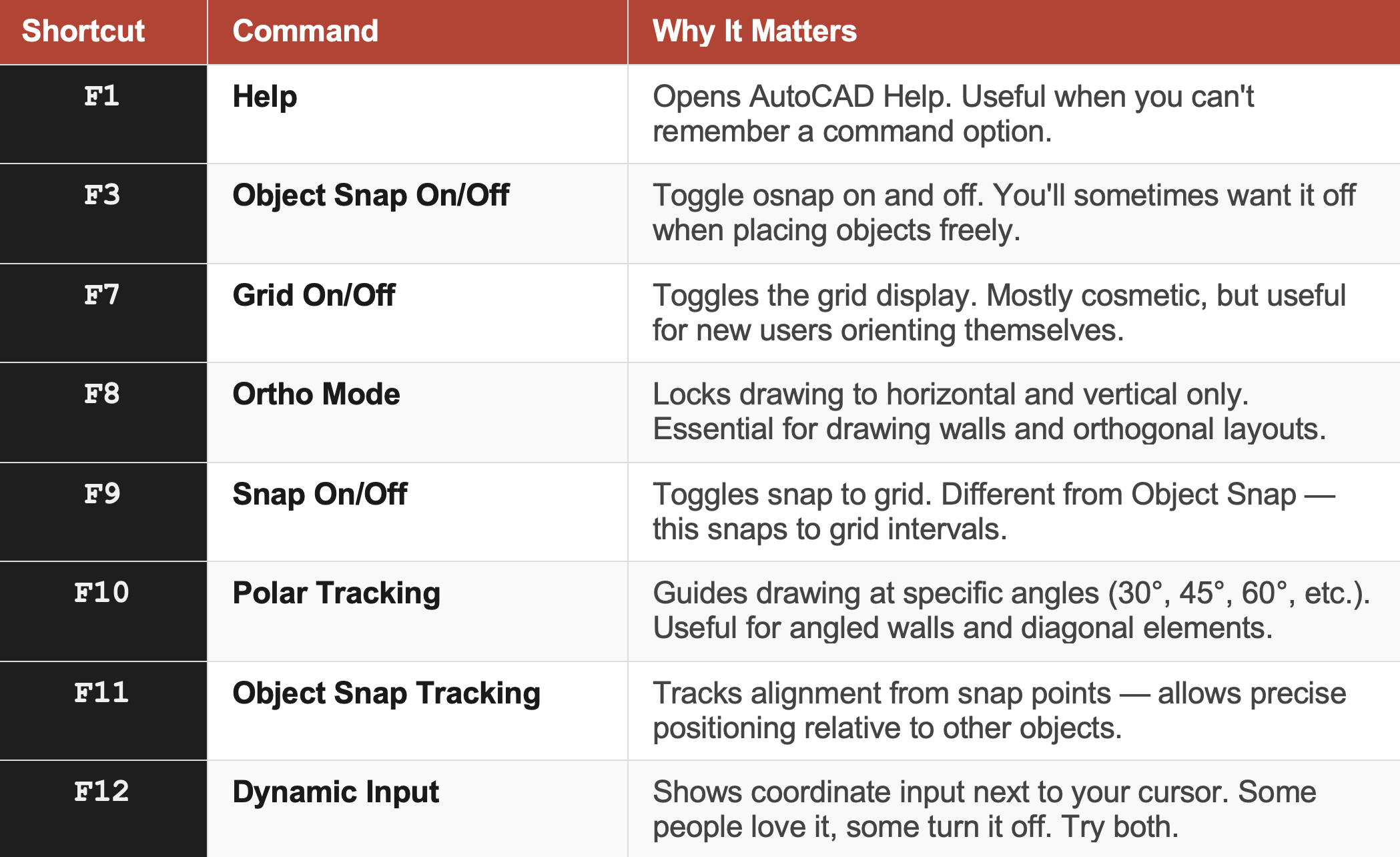
Function Keys: The Ones Worth Knowing
These are the toggles that sit above your number row — quick on/off switches for settings you'll flip constantly.
How to Actually Make These Stick
Here's the thing about shortcut lists — reading them does almost nothing. The only way shortcuts become automatic is through deliberate repetition in real work. Here's the approach that actually works:
Week 1 — Pick your core ten
Don't try to learn all of these at once. Pick the ten commands you use most in a typical drawing session and commit to using only the keyboard shortcut for those. No clicking the toolbar. Keyboard only. It'll feel slow — that's normal.
Week 2-3 — Add five more
Once your first ten feel natural, add five more. By now your muscle memory is starting to build. The new ones will come faster than the first ones did.
The sticky note trick
Write your ten chosen shortcuts on a sticky note and stick it to the bottom of your monitor. Glance at it instead of the toolbar. Within a week you won't need it anymore.
Use the command line as your teacher
Every time you click a toolbar button, look at the command line immediately after — it shows the command alias that just ran. That's how you learn shortcuts passively while doing real work. Over time, you stop clicking and start typing instead.
⚡ The Real Secret
Speed in AutoCAD isn't about knowing every command. It's about eliminating the pause between intention and action. Shortcuts don't just save seconds — they keep you in flow. You stay focused on the design, not on hunting through menus.
You Can Customise Your Shortcuts
If there's a command you use constantly that has a long alias, or a shortcut that feels awkward to type, you can change it. AutoCAD stores all command aliases in a file called acad.pgp — you can edit it with any text editor to reassign any shortcut to any command.
To find it: type CUI in the command line → go to the Aliases tab. Or navigate directly to the file through your AutoCAD support folder.
Most designers never need to do this — the defaults are well-designed. But it's worth knowing it's possible, especially if you're working in a studio that has specific workflow standards.
Start Small. Stay Consistent.
Nobody sits down and memorises a shortcut table. The designers who are fast in AutoCAD got that way by doing the same small set of things, thousands of times, until their hands moved without asking their brain first.
Pick your ten. Use them every day this week. Add more when they feel automatic. That's the whole system.
Bookmark this page. Come back to the tables when you're ready to add the next batch. In three months, you'll barely recognise how you used to work.
The fastest AutoCAD users aren't more talented — they've just done the boring work of building muscle memory. That's available to anyone willing to be slow for a few weeks.

Chique Nest's AutoCAD Block Libraries give you hundreds of professionally drawn, ready-to-use blocks for residential and commercial interior design — so you're not building from zero. Use them as-is, or as a foundation to customise into your own.

Stop redrawing the same elements on every project. 5,000+ professional AutoCAD blocks — every category, one download, use forever.
💡__ Everything You Need to Draft Like a Pro
Why waste time piecing together design files when you can get every block, every category, all in one place?
This exclusive bundle includes over 5,000+ AutoCAD blocks across furniture, cabinetry, kitchen, ISO models, elevations, sections, and more — curated specifically for interior designers, architects, and CAD professionals.
Whether you’re building presentations, technical drawings, or floorplans, this bundle gives you unmatched speed, clarity, and flexibility — and saves you hundreds in the process.
🧩__ What’s Inside the Bundle:
✅ 1,000+ Premium Dynamic AutoCAD Blocks
✅ 1,000+ Furniture Elevation Blocks
✅ 1,500+ All Purpose Furniture Blocks
✅ 200+ Branded Living Room Furniture Blocks
✅ 1,000+ Living Room Furniture Blocks
✅ 1,000+ Cabinetry Elevations & Sections
✅ 500+ Kitchen ISO, Floorplans, Elevations & Details
That’s 7 full libraries bundled into one. Valued at over $250+, available for only $119.99.
Trusted by interior designers and architects in 43 countries.
📂__ File Format & Compatibility:
Provided in .dwg format
Fully compatible with AutoCAD 2013 and newer
Works on both Windows and Mac systems
Created in metric units — also fully usable in imperial projects with the correct import settings
⚡__ Instant Access. One-Time Purchase. Use Forever.
✔️ Instant digital download upon purchase
✔️ No recurring fees — one-time payment for lifetime use
✔️ All sales are final (due to the digital nature of the product)
❗ This is not an AutoCAD course — blocks only
🚀__ Why Buy Now?
Buying each library separately would cost you over $250 — this bundle saves you more than 50%.
Get every file you’ll ever need in one purchase, and design smarter, faster, and better — every single time.